Online Picture Proof now offers two ways to help protect your online proof images:
AI Watermark Protection — helps discourage copying and makes AI watermark removal more difficult.
Screenshot Protection with Spotlight View — Allows customers to view the image through a small spotlight while the rest stays blurred, making it much harder to capture a clear screenshot of the entire photograph.
You can enable either option individually or use both together for an additional layer of protection.
AI Watermark Protection: Adds an RGB-style colour pattern, warning text and fine textures across preview images to discourage unauthorised copying and make AI-powered watermark removal more difficult.
Screenshot protection with Spotlight View: Blurs the displayed photograph while allowing customers to view a small, clear area by moving their mouse over the image, making it harder to capture a complete, usable screenshot.
AI Watermark Protection
Our new AI Watermark Protection adds a patterned watermark to your online proof images, helping discourage unauthorised copying and attempts to remove watermarks using AI tools.
The watermark combines an RGB-style colour pattern, warning text in different sizes, fine textures and irregular lines across the photograph. This design aims to make automated watermark removal more difficult while allowing customers to view and select their images.
This is the original sample image.

See the image before and after an AI tool tried to remove the watermark.
Some AI tools may remove the watermark but also alter faces and other details.
Adjust the watermark’s appearance
You can control the watermark’s transparency through your Online Picture Proof admin panel.
A stronger setting makes the text and colour patterns more noticeable. A lighter setting allows more of the photograph to show through.
How to enable AI Watermark Protection
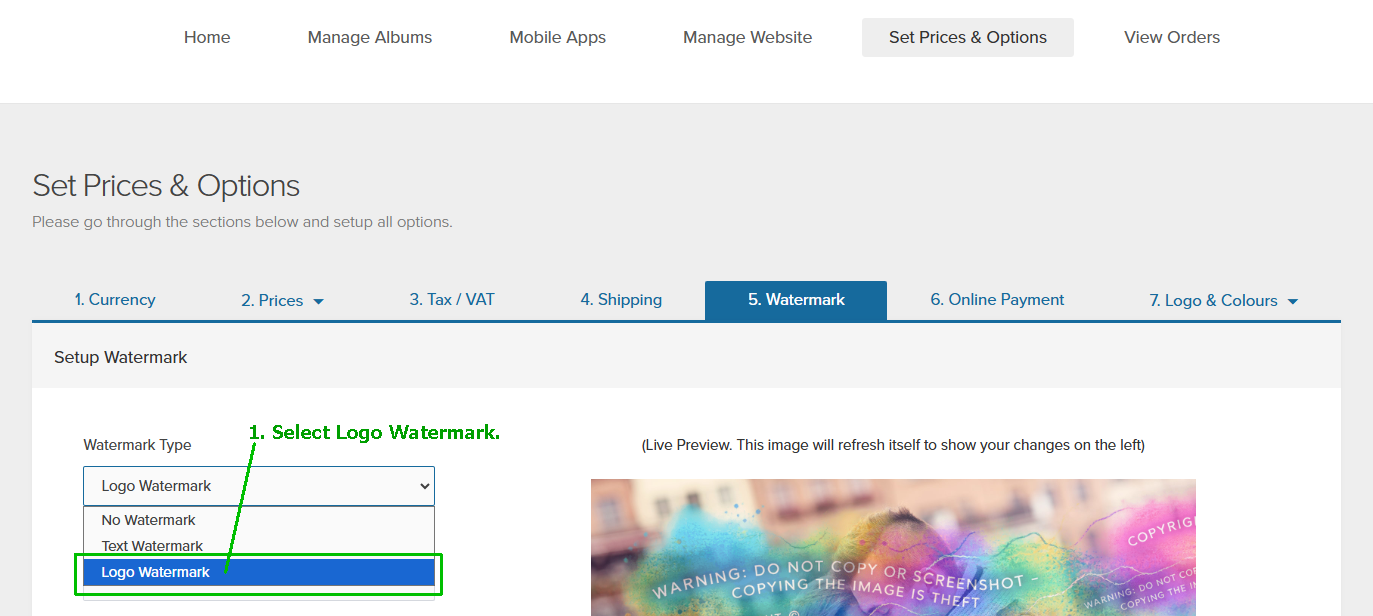
Log in to your OPP admin panel and click "Set Prices & Options".
Click option 5. "Watermark".
From Watermark Type dropdown, select Logo Watermark.
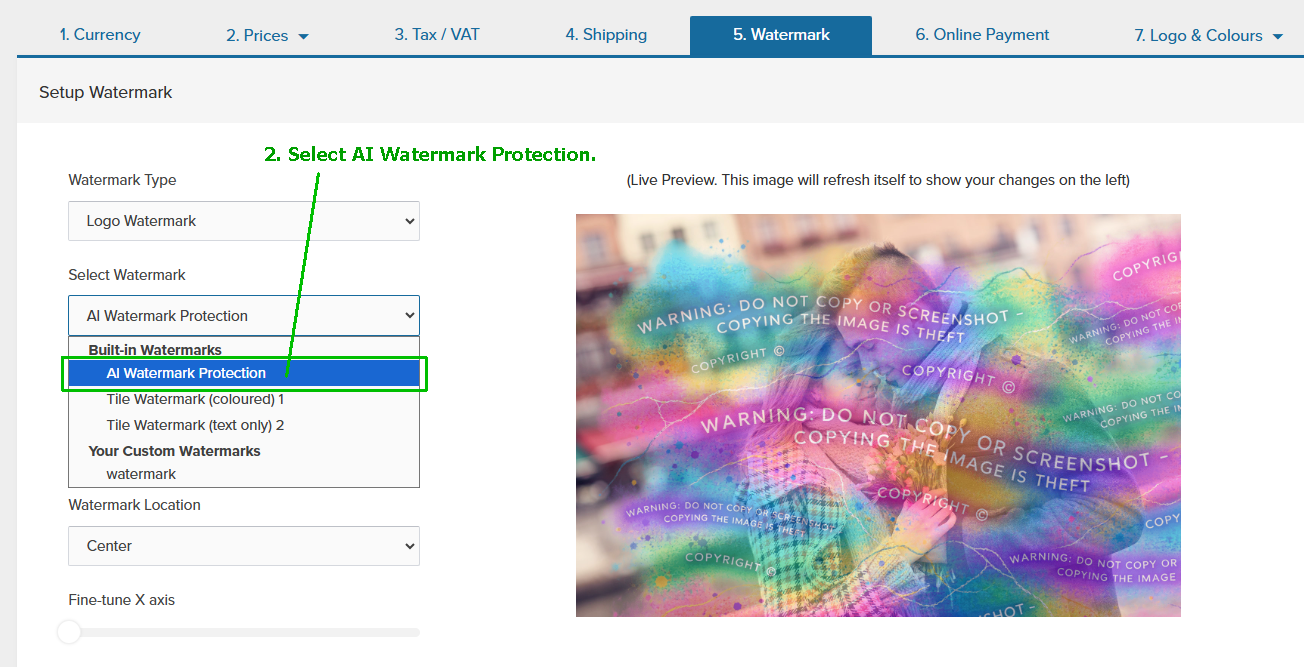
From Select Watermark, choose AI Watermark Protection under Built-in Watermarks.
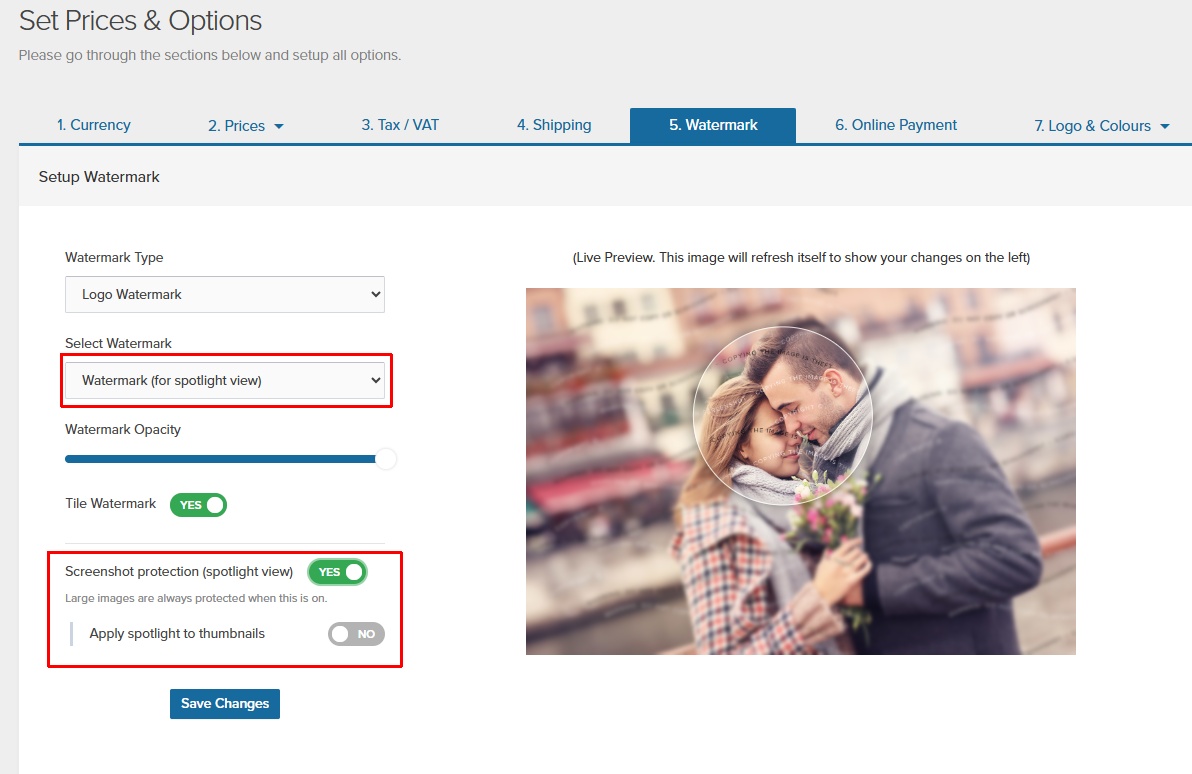
Adjust the watermark settings as needed. The Live Preview updates automatically so you can check its appearance.
Click Save Changes. The new option is available alongside your existing watermark options
The protection applies to your online album images. Your purchased digital downloads and print files remain watermark-free, so customers receive their final photographs without the protective pattern.
The watermark is applied at the time of album upload, so any changes to the watermark or its settings, such as opacity or position, will automatically apply to future albums. To apply the new watermark or updated settings to existing albums, simply edit each album and click "Refresh Watermark".
Screenshot protection with Spotlight View
Add screenshot protection to your client albums with Spotlight View.
Spotlight protection is available for both album thumbnails and large-image views.
When enabled, the photograph stays blurred while customers move their mouse to view the image through a small, clearer spotlight.
Your selected watermark remains visible within the spotlight, making it harder to capture a clear screenshot of the entire photograph.
This allows customers to examine their photographs without displaying the entire image clearly at once.
This is the original sample image.

Spotlight View blurs the photograph while customers move their mouse to inspect details through a small, clearer viewing area, providing added screenshot protection.
How to enable Spotlight View
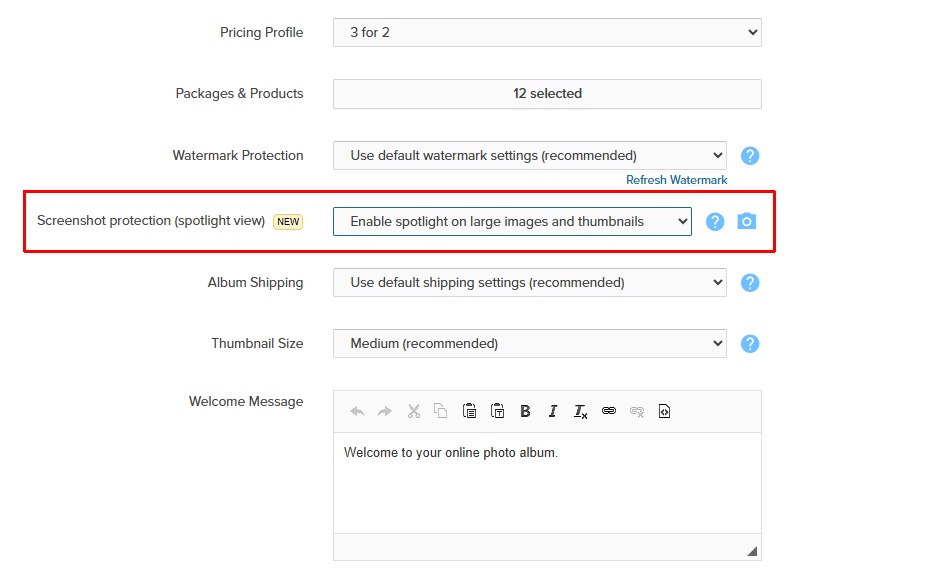
You can enable Screenshot Protection with Spotlight View for all your client albums or choose individual albums.
Enable for all albums - From Watermark Settings (under "Set Prices & Options") in your admin panel, enable Spotlight View. This is a global setting that applies to all albums in your account.
Enable for an individual album - edit the album from "Manage Albums" section you want to protect and enable Spotlight View in its settings. This applies protection only to that album. Spotlight View is available for both album thumbnails and large-image views.